App Lock - Fingerprint Lock
- 4.6
- Rating
- 100.00M
- Installs
- Free
- Price
 Analysis by App-foxy
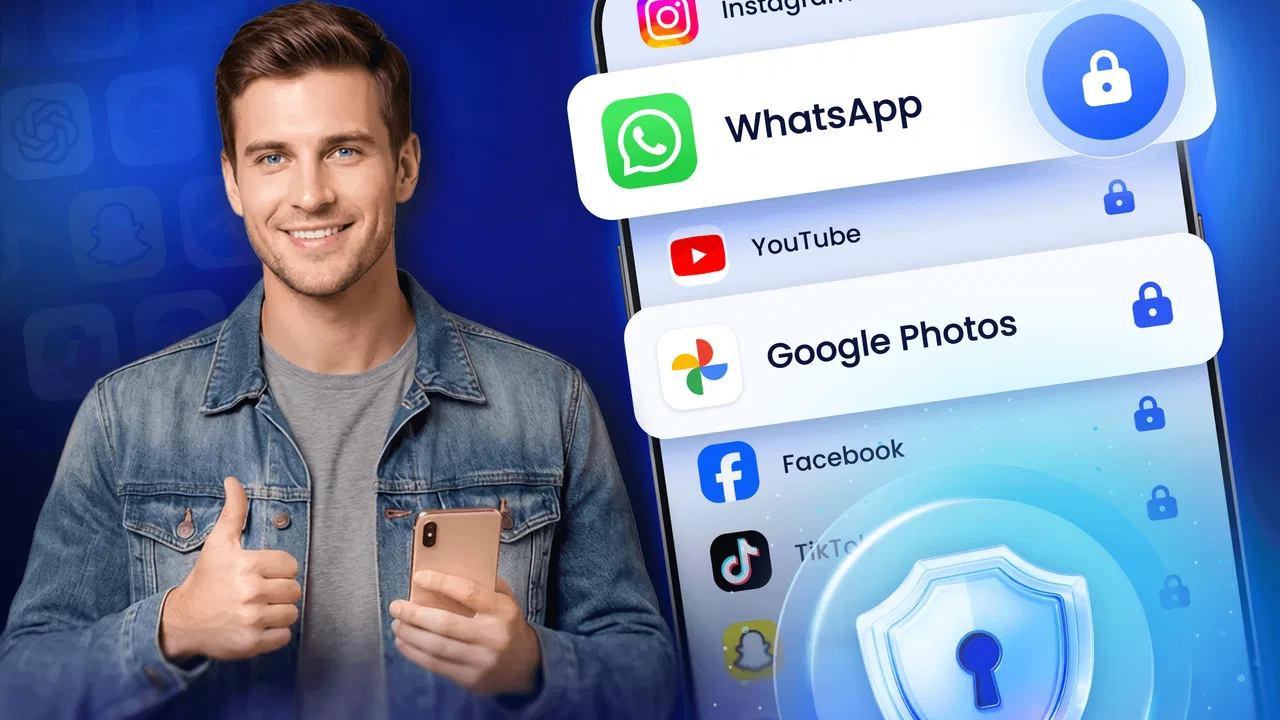
I keep returning to the same small privacy problem: handing my phone to someone for one task can expose far more than I intended. A friend may want to see a photo, a child may need a game, or a colleague may borrow the device to check something online. Without an extra barrier, that quick favor can turn into access to messages, pictures, notes, or other personal apps. App Lock - Fingerprint Lock is built for that exact moment, adding a separate lock screen to selected apps instead of forcing me to secure the whole phone every time.
After using it as a productivity utility, I see its value less as a dramatic security product and more as a practical layer between casual access and private content. It is free to install, aimed at Everyone, and developed by 360 Tool. Its focus is narrow: protect chosen apps with a password or fingerprint and keep selected photos behind a lock screen. That narrow purpose is also its main strength, because I can protect only what needs protection rather than interrupting my normal phone routine.
Where the app saves time in everyday phone use
I find the biggest time saver is not a faster unlock but fewer little checks before I hand my phone over: I can decide which apps need a boundary and leave ordinary tasks accessible. That works best when I choose the protected apps deliberately rather than locking everything by default. Next, I look at what those controls can—and cannot—tell me about trust and privacy.
You May Also Like

 Blood Strike: 2.5 Anniversary
Blood Strike’s Loadouts Turn Every Drop Into a Tactical Gamble
A close look at Blood Strike’s custom loadouts: how fast access to signature weapons reshapes its battle royale rhythm, rewards preparation, and narrows the gap between fights.

 Pandora - Music & Podcasts
Pandora’s Music Is Easy to Start, but Harder to Recover
Pandora’s strength is its low-effort path from a seed to a station. Its weak spot is how much confidence it asks you to place in connection, setup, and quiet recovery.

 8 Ball Pool
 Is Built on Rivalries, Rematches, and Routine
A close look at the rivalries, rematches, shared routines, and unanswered safety questions that turn a quick pool match into a persistent mobile community.

 Samsung Music
’s Quiet Strength Is Playing What You Already Own
Its reach comes less from spectacle than from dependable access to a personal library. That simplicity is both the app’s strongest retention engine and its ceiling.

 AccuWeather: Weather Radar
AccuWeather Review: A Quick, Clear Forecast for Everyday Decisions
For everyday plans, the best forecast is the one you can understand quickly. AccuWeather makes rain timing, radar, and local conditions easy to act on, with a few trade-offs.

 Hill Climb Racing
Why Hill Climb Racing Still Turns Crashes Into One More Run
A tiny car, a bumpy hill and one more upgrade: Hill Climb Racing keeps resurfacing because its simple chaos makes every near-miss feel personal.
More From Our News Desk
View All News


The recurring problem is selective privacy
Phone security usually comes in two extremes. The device passcode protects everything, but asking someone to unlock the entire phone is often inconvenient. On the other hand, leaving the phone open makes every app available once the screen is unlocked. This utility sits between those choices. I can let someone use a calculator, browser, or game while keeping more sensitive areas behind another check.
That distinction matters in ordinary situations. Imagine showing a family member a travel picture. The photo itself is harmless, but swiping through the gallery may reveal work screenshots, private conversations saved as images, or documents I did not plan to share. With an app-level lock and a protected photo area, I can hand over the phone with less need to supervise every tap.
The same idea works at work. If a colleague needs to use my phone to call a customer or inspect a website, I do not have to worry as much about accidental access to personal apps. It is not a replacement for careful judgment, but it reduces the number of decisions I need to make in the moment. That is where the productivity benefit appears: fewer interruptions, fewer explanations, and less time spent checking what another person might open.
I also find selective locking more realistic than trying to maintain perfect privacy across the entire device. Most people do not want an extra prompt for every action. They want protection around a handful of apps that contain sensitive material. This approach lets me concentrate the added friction where it has the most value.
Setting up the first useful protection
The first setup should be approached as a small planning exercise rather than a race to lock everything. I would begin with the apps that would cause the most trouble if opened casually: private messaging, a gallery, financial tools, cloud storage, or work-related apps. Locking every application can make the phone feel slow to use, so a short, carefully chosen list is a better starting point.
The app supports password protection and fingerprint access. I prefer the fingerprint option for routine unlocking because it keeps the extra barrier quick. A password remains useful when the fingerprint sensor is unavailable or when another person needs access without knowing the phone’s main unlock method. The important practical point is to choose a password I can remember without making it obvious to someone who knows me.
Photo protection deserves separate thought. If my goal is simply to stop someone opening the gallery, locking the gallery app may be enough. If I need selected images to stay apart from the normal gallery experience, the hide-photo function offers a more focused workflow. I would move only the images that genuinely need extra privacy, because putting everything into a protected area can make finding ordinary pictures unnecessarily awkward.
One useful habit is to test the setup immediately after choosing the protected apps. I lock the phone, open one protected app, try the fingerprint prompt, and then check an app that should remain accessible. This catches an overly broad selection before it becomes annoying. I also test the protected photo workflow with a nonessential image first, so I understand where it appears and how I will retrieve it later.
The current version is 1.4.0.1, and the app works on Android 6.0 or later. That makes it relevant to people using older Android phones as well as newer devices. Still, the experience can vary with the phone’s fingerprint hardware and system behavior. A fingerprint lock is only as convenient as the sensor, and a weak or unreliable sensor can turn a fast privacy check into repeated attempts.
How I would use it during a normal day
My favorite scenario is lending a phone without lending the whole digital life attached to it. A child can watch something or play a game while messaging and photos stay protected. A visitor can use the browser without wandering into personal accounts. A colleague can make a call without seeing unrelated notifications inside other apps. In each case, the benefit is not that the app performs a complicated task; it is that I can say yes more comfortably.
There is also a useful travel scenario. When I am sharing a device to show directions, tickets, or reservations, I may need to pass it around several times. Locking selected apps means I do not have to keep the phone in my hand for every step. The time saved is small each time, but repeated handoffs are exactly where casual privacy mistakes happen.
For photos, I would use the protected area for images that are private rather than for my entire camera library. For example, scanned documents, personal screenshots, or pictures intended for one person can be kept apart from holiday photos. This separation reduces the chance of showing the wrong image during a quick swipe. It also creates a clearer mental rule: ordinary pictures remain easy to browse, while sensitive ones require the extra lock.
Another practical use is temporary access. If someone needs one locked app for a few minutes, I can unlock it for that purpose and then let the app’s protection resume afterward. I would still stay nearby when the content is especially sensitive, because an app lock controls entry but cannot prevent someone from seeing information once I have opened it for them.
What friction it removes, and what it adds
The biggest improvement is the removal of constant supervision. Before using an app-level lock, lending a phone often meant hovering over the screen or remembering to close every private app first. That routine is easy to get wrong. A separate lock screen gives me a more dependable boundary and makes casual sharing less stressful.
It also avoids the inconvenience of repeatedly changing the phone’s main security settings. I do not need to switch between an open device and a fully locked device depending on who is nearby. The selected apps keep their own barrier, while the rest of the phone stays available for normal use. For a busy day, that is more useful than a stronger system that I would disable because it interrupted me too often.
There is a trade-off: every extra lock creates another moment of friction. If I protect an app I open dozens of times daily, the repeated prompt may outweigh the privacy benefit. I would reserve the lock for apps where the consequence of casual access is meaningful. This is especially important for productivity, because a security tool that constantly breaks my flow can become something I avoid.
Fingerprint access helps reduce that cost, but it does not eliminate it. A damp finger, a poorly positioned sensor, or a phone that does not recognize the print can make the password route necessary. I would therefore treat the password as part of the setup, not as an emergency detail to solve later. If I cannot reliably unlock the protected area, the privacy feature becomes a source of frustration rather than reassurance.
How it compares with the usual alternatives
The closest alternative is the phone’s built-in screen lock. That remains the better choice when the phone itself must stay inaccessible, especially if I am leaving it unattended. The advantage of this app is selectivity: I can share the unlocked phone while keeping certain apps and photos behind another check. It is not competing with full-device security so much as filling the gap between a locked phone and an entirely open one.
Some Android phones also include manufacturer-specific app-lock or private-space tools. When those are available and well integrated, they may feel smoother because they are part of the operating system. They can also behave more predictably after updates. I would choose the built-in option when it offers the exact protection I need. This app becomes more appealing when the phone lacks a convenient selective lock or when I want a straightforward utility focused on this task.
A separate secure gallery or vault can be preferable for someone whose main concern is organizing a large private photo collection. That type of tool may offer deeper media management. App Lock - Fingerprint Lock is more useful when I want a simple boundary around selected apps as well as photos, without turning the whole phone into a private archive.
There is another alternative: changing habits. Closing apps, avoiding saved sensitive images, and refusing to lend the phone can work, but those methods depend heavily on memory and social awkwardness. The app does not replace sensible behavior, yet it makes the safer behavior easier to maintain. For me, automation wins when the same privacy decision appears several times a day.
Important limits before relying on it
I would not describe this as complete privacy protection. Once someone is legitimately inside an unlocked app, the app lock has already done its job. It cannot decide which screen within that app is safe to show, and it cannot stop someone from remembering, photographing, or sharing content they can see. The strongest protection still comes from controlling who gets the phone and what I open for them.
Notifications also deserve attention. Locking an app does not automatically mean that every piece of information associated with it disappears from the phone’s notification area. I would review notification previews separately and disable sensitive previews through the phone’s own settings when needed. This is one of the most important details to check, because a protected app can still reveal a message subject or snippet outside the app itself.
I would also avoid assuming that hiding a photo is identical to encrypting every copy of it. A privacy workflow is only as strong as its complete path: original files, backups, thumbnails, shared folders, and recently deleted items all matter. For highly sensitive documents, I would use a solution designed specifically for secure storage and keep the phone’s overall security strong.
Free access makes the app easy to try, but in-app purchases are listed at $3.99 per item. That means I would inspect any optional purchase screen carefully and decide whether the basic workflow already meets my needs before paying. The app’s core appeal is convenience, so an upgrade is worthwhile only if it removes a specific annoyance I actually encounter.
The app has a 4.7 average from around 348 thousand ratings, with more than 50 million installs. Those figures suggest that this type of selective privacy tool has broad appeal, but popularity does not remove the need to test it on a particular phone. Fingerprint behavior, background restrictions, and system-level battery management can affect how smoothly any app-lock utility behaves.
Who should use it and who should skip it
I would recommend it to people who regularly lend their phone, share a device with family, or want a quick barrier around private messages and photos. It is especially suitable for someone who wants more control than a standard screen lock provides but does not need a complex vault system. The free entry point and Everyone content rating also make it approachable for ordinary household use.
I would skip it if I need enterprise-grade protection, extensive encrypted storage, or a complete replacement for the phone’s security system. I would also think twice if I rarely share my phone and already have a reliable built-in private-space feature. In that situation, adding another utility may create more prompts and maintenance without solving a real problem.
My practical recommendation is to start with two or three genuinely sensitive apps, protect a small group of photos, and use the phone normally for several days. If the extra checks fit naturally into the routine, expand the list carefully. If they slow down frequent tasks, remove those apps rather than abandoning the whole idea. The best configuration is not the most locked-down one; it is the one I will keep enabled.
Overall, App Lock - Fingerprint Lock succeeds because it addresses a recurring, awkward problem with a simple extra step. It saves time by reducing supervision, removes the need to alter the phone’s main lock whenever I lend it out, and gives private photos a more deliberate place. Its limitations are real: it is not total device security, notification previews need separate attention, and fingerprint reliability depends partly on the phone itself.
For my use, the balance is positive. I would keep it for selective privacy, especially when family, friends, or coworkers need temporary access to an unlocked device. I would not treat it as a vault for every sensitive file or as a substitute for careful sharing. Used with those boundaries, this productivity app provides a practical layer of control without turning everyday phone use into a series of security hurdles.
FAQs for App Lock - Fingerprint Lock
01What is App Lock - Fingerprint Lock and how does it protect my apps?
App Lock - Fingerprint Lock is a security application designed to protect your personal data and privacy by locking apps on your device. It uses fingerprint recognition as a key feature, allowing only authorized users to access locked applications. This adds an extra layer of security, ensuring that sensitive information remains safe from unauthorized access.
02Is App Lock - Fingerprint Lock compatible with all Android and iOS devices?
App Lock - Fingerprint Lock is compatible with most Android and iOS devices that support biometric authentication. However, the fingerprint feature requires devices with a fingerprint sensor. It's important to check your device's compatibility and ensure it meets the app's requirements before downloading to fully utilize its features.
03Can I still use the app if my device doesn’t have a fingerprint sensor?
Yes, you can still use App Lock - Fingerprint Lock even if your device lacks a fingerprint sensor. The app supports alternative security methods such as PIN codes and pattern locks. These options provide flexibility and ensure that you can protect your apps and data, regardless of your device's hardware limitations.
04How user-friendly is the App Lock - Fingerprint Lock interface?
App Lock - Fingerprint Lock offers a user-friendly interface designed for easy navigation, making it simple for users to set up and manage app locks. The intuitive design allows users to quickly select which apps to lock, customize settings, and manage security options with minimal effort. This makes it accessible even for those who are not tech-savvy.
05Does App Lock - Fingerprint Lock affect the performance of my device?
App Lock - Fingerprint Lock is optimized to run smoothly without significantly impacting your device's performance. It operates efficiently in the background, ensuring that your apps are secure without draining battery life or slowing down your device. However, it’s always recommended to monitor app usage and performance on your specific device.
Pros
- Highly secure fingerprint authentication.
- User-friendly interface for easy setup.
- Customizable lock settings available.
- Low battery consumption during use.
- Supports multiple app locks simultaneously.
Cons
- Limited features in the free version.
- Some devices may experience lag.
- Occasional false unlocks reported.
- Ads can disrupt user experience.
- Fingerprint sensor dependency.

App Lock - Fingerprint Lock
Gallery